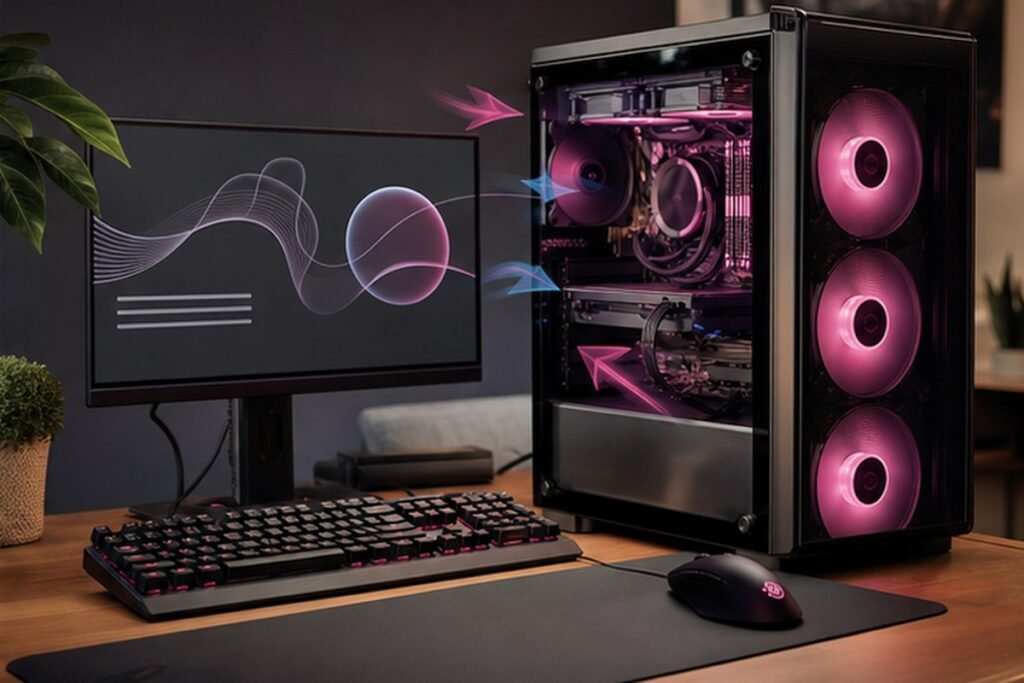
Improve frame-time consistency through updates, sensible settings, background cleanup and temperature checks.
The best gaming advice respects both the joy of play and the practical limits of time, hardware and health. A higher average frame rate is useful, but stable frame delivery often matters more to how a game feels. Careful diagnosis can recover performance that is being lost to settings, heat, storage pressure or background activity. This Findreminds guide turns that idea into a sequence you can test, measure and adapt without chasing perfection.
At a glance
The simplest approach is to begin with one high-impact change, use it in a real situation, and review the result before adding more. The steps below are ordered to make optimize PC gaming practical for beginners while leaving enough flexibility for experienced readers.
Why optimize PC gaming matters
A higher average frame rate is useful, but stable frame delivery often matters more to how a game feels. Careful diagnosis can recover performance that is being lost to settings, heat, storage pressure or background activity. Good systems also reduce decision fatigue: the correct next action is visible, the tools are close at hand and progress can be judged by a real outcome rather than appearance.
A practical step-by-step method
1. Measure a repeatable scene
Use the same built-in benchmark or gameplay route and record average frame rate, frame-time behavior and temperatures before changing settings. Make the change small enough to test in one normal day. A simple before-and-after note is more useful than a perfect system that exists only on paper.
2. Update with a rollback plan
Install stable graphics and system updates from official sources, noting the current version so you can reverse a problematic change. The practical test is whether this still works when time, energy or attention is limited. If it requires repeated negotiation, reduce the number of decisions.
3. Close unnecessary background work
Pause cloud synchronization, browser video, launchers and scans that compete for CPU, storage or network resources during play. Keep the result observable. Write down what improved, what became harder and what you would change before repeating the step next week.
4. Lower the expensive settings first
Test ray tracing, shadows, volumetrics, reflections and crowd density before reducing every texture and detail option. This is also a good place to remove unnecessary tools. Use the settings, materials and routines already available before buying another product or subscription.
5. Use resolution scaling carefully
Choose a quality mode first, inspect fine detail and motion, and avoid sharpening levels that create halos or shimmer. Expect the first version to be incomplete. A useful routine becomes personal through feedback, not through copying someone else’s ideal setup.
6. Set a realistic frame cap
A stable cap near what the system can maintain may feel smoother and reduce heat compared with constantly fluctuating output. If the step affects another person, explain the reason and agree on a simple boundary. Shared expectations are easier to maintain than silent assumptions.
7. Check temperature and airflow
Clear vents, verify fans, keep the device on a hard surface and watch for clock-speed drops under sustained load. Use a clear stopping rule. Once the intended outcome is achieved, move on instead of turning a helpful adjustment into another project.
8. Protect storage headroom
Keep space available for system operations, shader caches and updates, and move only appropriate games to slower storage. Review the effect after several repetitions, because one unusually easy or difficult day can give misleading feedback.
Common mistakes to avoid
- Using random registry tweaks. Pause and return to the outcome you actually want; a smaller, safer adjustment is usually easier to sustain.
- Installing unofficial driver packages. Pause and return to the outcome you actually want; a smaller, safer adjustment is usually easier to sustain.
- Changing many settings before retesting. Pause and return to the outcome you actually want; a smaller, safer adjustment is usually easier to sustain.
- Judging performance from one unusually quiet scene. Pause and return to the outcome you actually want; a smaller, safer adjustment is usually easier to sustain.
A realistic seven-day plan
Record a baseline, change one high-impact setting at a time and keep a small table of results. Stop when the game is stable enough for the display and your preferences. Keep the experiment narrow. At the end of the week, answer three questions: What became easier? What still created friction? What is the one change worth carrying forward?
Quick checklist
- Measure a repeatable scene
- Update with a rollback plan
- Close unnecessary background work
- Lower the expensive settings first
- Use resolution scaling carefully
- Set a realistic frame cap
- Check temperature and airflow
- Write one result you will review after seven days
Frequently asked questions
Should I always use the newest graphics driver?
New drivers often improve support, but a stable older version may be preferable if an update introduces a confirmed problem.
Do low textures always improve frame rate?
Texture quality mainly affects graphics memory. Lowering it helps when memory is constrained but may not solve a CPU or shader bottleneck.
Is a frame cap bad for input delay?
It can add or reduce latency depending on the game, synchronization method and hardware. Test a few caps with consistent conditions.
Final takeaway
Optimize PC gaming becomes useful when it supports a clear outcome and remains simple enough to repeat. Begin with the first relevant step, observe what happens and adapt the method to your own schedule, resources and responsibilities. Findreminds will continue to translate useful ideas across Gaming, work and everyday life into practical guides you can use.