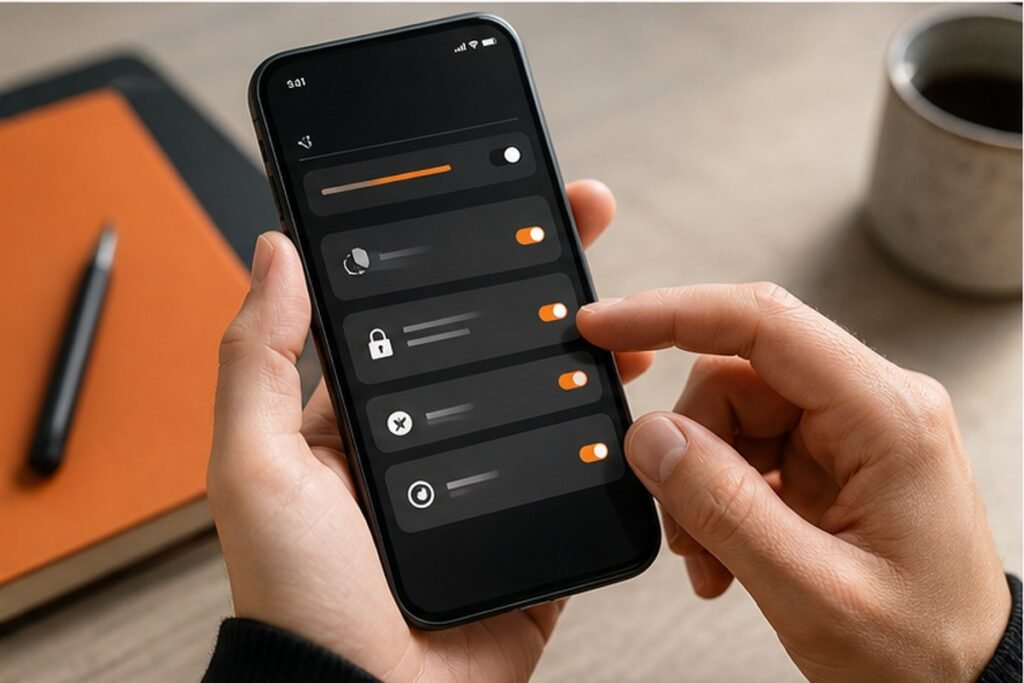
Set up privacy, notifications, backups, battery and accessibility before a new phone settles into old habits.
Technology should remove friction from everyday life, not add another layer of noise. A new Android phone often arrives with helpful features mixed together with promotional alerts, broad permissions and battery settings that do not match the owner. A deliberate ten-minute review produces a calmer, safer device. This Findreminds guide turns that idea into a sequence you can test, measure and adapt without chasing perfection.
At a glance
The simplest approach is to begin with one high-impact change, use it in a real situation, and review the result before adding more. The steps below are ordered to make Android settings checklist practical for beginners while leaving enough flexibility for experienced readers.
Why Android settings checklist matters
A new Android phone often arrives with helpful features mixed together with promotional alerts, broad permissions and battery settings that do not match the owner. A deliberate ten-minute review produces a calmer, safer device. Good systems also reduce decision fatigue: the correct next action is visible, the tools are close at hand and progress can be judged by a real outcome rather than appearance.
A practical step-by-step method
1. Install system and security updates
Open the update screen, connect to trusted Wi-Fi and install pending operating-system and security patches before adding many apps. Make the change small enough to test in one normal day. A simple before-and-after note is more useful than a perfect system that exists only on paper.
2. Review app permissions
Check which apps can use the camera, microphone, contacts, location and nearby devices, and allow access only when it supports a feature you actually use. The practical test is whether this still works when time, energy or attention is limited. If it requires repeated negotiation, reduce the number of decisions.
3. Tune notification categories
Keep calls, messages, calendar reminders and security alerts; silence promotional, suggestion and engagement notifications app by app. Keep the result observable. Write down what improved, what became harder and what you would change before repeating the step next week.
4. Confirm backup and recovery
Verify photo, contact and device backups, then add a recovery email or phone number that you can still access if the device is lost. This is also a good place to remove unnecessary tools. Use the settings, materials and routines already available before buying another product or subscription.
5. Protect the lock screen
Use a strong PIN plus fingerprint or face unlock, hide sensitive notification details and set a short automatic-lock period. Expect the first version to be incomplete. A useful routine becomes personal through feedback, not through copying someone else’s ideal setup.
6. Adjust battery behavior
Use adaptive battery, identify unusually active apps and avoid unrestricted background use unless real-time delivery is essential. If the step affects another person, explain the reason and agree on a simple boundary. Shared expectations are easier to maintain than silent assumptions.
7. Personalize accessibility
Try text size, bold text, color correction, live captions, one-handed mode and reduced animation; accessibility options often improve comfort for everyone. Use a clear stopping rule. Once the intended outcome is achieved, move on instead of turning a helpful adjustment into another project.
Common mistakes to avoid
- Granting every permission during setup. Pause and return to the outcome you actually want; a smaller, safer adjustment is usually easier to sustain.
- Turning off all background activity and then missing important alerts. Pause and return to the outcome you actually want; a smaller, safer adjustment is usually easier to sustain.
- Using a four-digit PIN that is easy to observe. Pause and return to the outcome you actually want; a smaller, safer adjustment is usually easier to sustain.
- Assuming cloud backup is active without checking a recent backup date. Pause and return to the outcome you actually want; a smaller, safer adjustment is usually easier to sustain.
A realistic seven-day plan
Handle security and backup first, notifications second, and comfort settings last. Revisit permissions after one week because your real usage will be clearer. Keep the experiment narrow. At the end of the week, answer three questions: What became easier? What still created friction? What is the one change worth carrying forward?
Quick checklist
- Install system and security updates
- Review app permissions
- Tune notification categories
- Confirm backup and recovery
- Protect the lock screen
- Adjust battery behavior
- Personalize accessibility
- Write one result you will review after seven days
Frequently asked questions
Are Android menus the same on every phone?
No. Labels vary by manufacturer and Android version, so use the Settings search box when a menu name is different.
Should location stay off all the time?
Not necessarily. Maps, emergency features and device finding need it, but most apps can use approximate or while-in-use access.
Does adaptive battery damage notifications?
Usually it helps efficiency, but messaging, alarm or health apps may need an exception if alerts arrive late.
Final takeaway
Android settings checklist becomes useful when it supports a clear outcome and remains simple enough to repeat. Begin with the first relevant step, observe what happens and adapt the method to your own schedule, resources and responsibilities. Findreminds will continue to translate useful ideas across Technology, work and everyday life into practical guides you can use.